
A Note on Data Privacy and Compliance
Before anything else, this needs to be said clearly: this tool stores student accommodation data in Google Workspace (Google Sheets and Google Docs), and depending on where you work, that may not meet your organization’s data security requirements for IEP and 504 plan information. Please read this section carefully before deciding whether to use this tool with real student data.
The regulatory landscape is more complex than FERPA alone. Most educators are familiar with FERPA (the Family Educational Rights and Privacy Act), which protects student education records broadly. What is less widely understood is that the Individuals with Disabilities Education Act (IDEA) adds its own confidentiality provisions on top of FERPA, specifically for students with disabilities. These are found at 34 CFR §§300.610 through 300.626 and include requirements around access logging (participating agencies must keep a record of who accesses a student’s special education records, when, and for what purpose), parental notification when records are no longer needed, and consent requirements that are in some cases stricter than FERPA alone. The U.S. Department of Education’s guidance is explicit that when analyzing privacy requirements for children with disabilities, you should examine the IDEA requirements first, because they provide protections beyond what FERPA requires. Any system used to store IEP-related data needs to satisfy both sets of requirements, not just FERPA.
State laws add another layer. South Dakota has its own Student Data Privacy Act governing how schools handle and share student data, including requirements for data security measures and breach notification. Beyond the statute, South Dakota’s Department of Education has designated Infinite Campus as the statewide student information system, and its special education division directs districts to use the Infinite Campus IEP module for managing special education records. In conversations with colleagues in South Dakota’s special education community, I have heard consistent feedback that the SD DOE and other entities in the state do not consider Google Workspace sufficiently secure for housing IEP data. Other states have their own designated systems and their own policies about approved platforms for this kind of information. If you work in a state, district, or cooperative that has a designated system for IEP records, storing that data in a separate Google Sheet may conflict with your organization’s data governance expectations regardless of Google’s technical security claims.
The platform question is real but nuanced. Google Workspace for Education does claim FERPA compliance and has contractual commitments in its education agreements. That said, there is a significant difference between a district’s managed Google Workspace for Education environment (which has organizational controls, admin oversight, and contractual data protections) and a personal Google account (which has none of those). Even within a managed Workspace environment, institutions must still configure appropriate access controls and sharing settings to maintain compliance. And FERPA compliance alone does not automatically satisfy the additional requirements that IDEA imposes on special education records. The question is not just “is Google Workspace secure?” but rather “does my organization’s data governance framework approve this platform for this specific category of data?”
The “shadow data” risk. There is a broader concern here that is worth naming. A spreadsheet containing student IEP accommodation data that lives outside your district’s official student information system is what data governance professionals call “shadow data.” Even when that spreadsheet is in a technically secure environment, the fact that it exists outside the system of record creates compliance exposure. Under FERPA, the institution remains accountable for safeguarding education records regardless of where the data is stored or processed. An accommodation tracker spreadsheet that is shared, copied, or left in a former employee’s Drive folder becomes a liability.
What this means for you. Before using this tool with real student data, you need to check with your district’s administration, data privacy officer, or your state’s guidance to determine whether storing accommodation information in Google Workspace is permitted in your context. I am not a lawyer, I am not a compliance officer, and I cannot tell you whether this tool meets the regulatory requirements that apply to your situation. This tool is shared as-is under a Creative Commons license, and I do not assume responsibility for how it is used or whether it complies with federal, state, or local regulations.
If your organization does have an approved framework for using Google Workspace with protected student data, this tool may work well for you. If not, the underlying approach (centralizing accommodation data in a structured format and generating per-teacher classroom snapshots automatically) could still be adapted to a platform that does meet your requirements. The architecture and the workflow are more transferable than any specific tool. I would rather be upfront about this limitation than have someone discover it after they have entered real student data.
What This Is and Why It Exists
If you work in special education coordination or building administration, you already know the problem. Student accommodation data lives in one place (usually a filing cabinet, a shared drive folder, or a paid IEP management platform), but the people who actually need to implement those accommodations every day are classroom teachers. Getting the right information to the right teacher in a format they can actually use during instruction is a process that tends to involve a lot of copying, pasting, reformatting, and hoping nothing falls through the cracks.
The IEP Accommodation Tracker is a free, open-source Google Sheets tool that centralizes accommodation data for IEP, 504, and MTSS plans and generates per-teacher classroom snapshot documents automatically. Instead of manually assembling accommodation summaries for each teacher, you enter the data once in a structured spreadsheet, and the tool produces formatted Google Docs that show each teacher exactly which students have which accommodations in which class periods. It also provides a building-level admin dashboard, compliance timeline tracking, section balance alerts, and a testing day logistics planner.
This tool is designed for SpEd coordinators, case managers, and building administrators working at the school or small-district level. It works especially well in contexts where you do not have (or do not want to pay for) a dedicated IEP management platform, or where the platform you do have does not produce teacher-friendly classroom summaries. The alternative it replaces is the manual process of pulling accommodation details from individual plans and formatting them into documents by hand, which is both time-consuming and prone to errors that can have real compliance consequences.
A few things this tool intentionally does not do. It does not manage the IEP process itself: no meeting scheduling, no goal tracking, no progress monitoring. It does not integrate with your student information system or any third-party IEP platform. And it does not replace reading the full IEP or 504 plan. What it does is solve the specific distribution problem of getting accommodation information into teachers’ hands in a consistent, readable format.
The tool requires Google Workspace (Google Sheets and Google Docs) and uses Google Apps Script for all of its automation. It is licensed under Creative Commons BY 4.0, so you are free to use, modify, and share it.
Quick Look
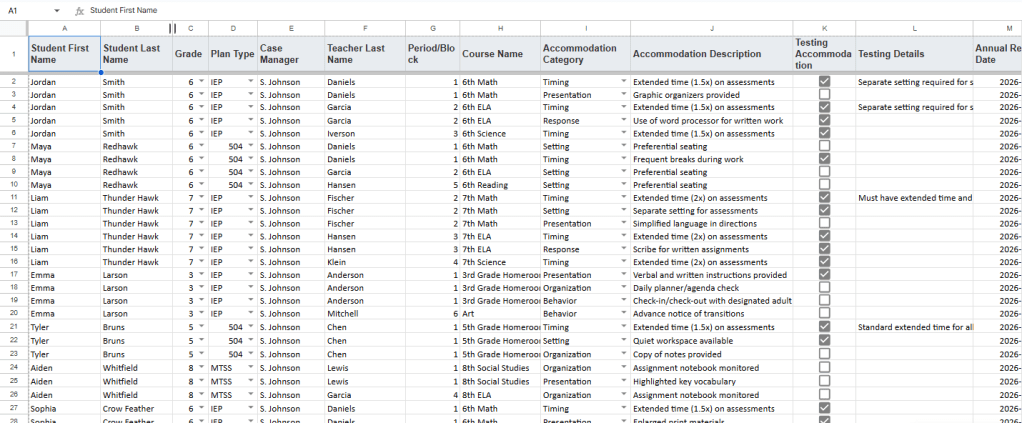
The Students tab is where all accommodation data lives. Each row represents one accommodation for one student in one class period, so a student with three accommodations across four teachers will have multiple rows. Data validation dropdowns keep entries consistent.
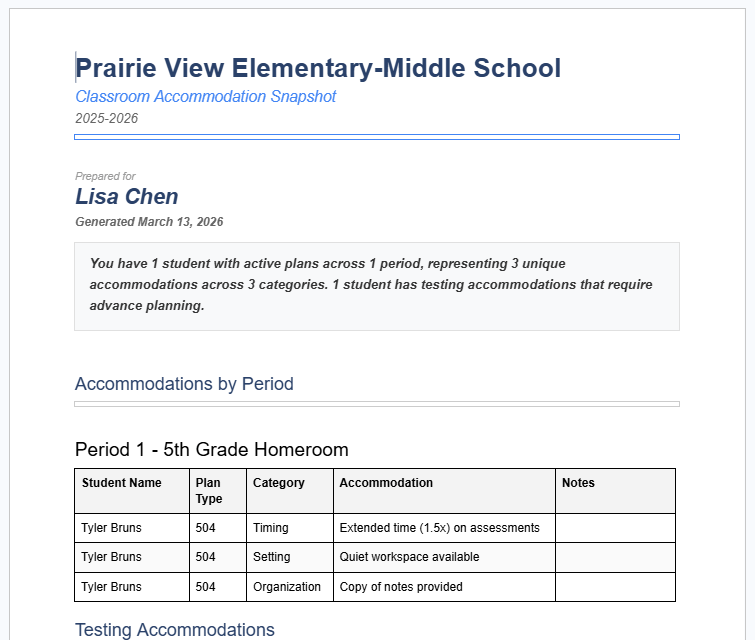
This is what the generated output looks like. Each teacher gets a formatted Google Doc with a summary of their accommodation load, tables organized by class period, and (if enabled) a separate testing accommodations section. The document is designed to be printed or saved as a quick reference.
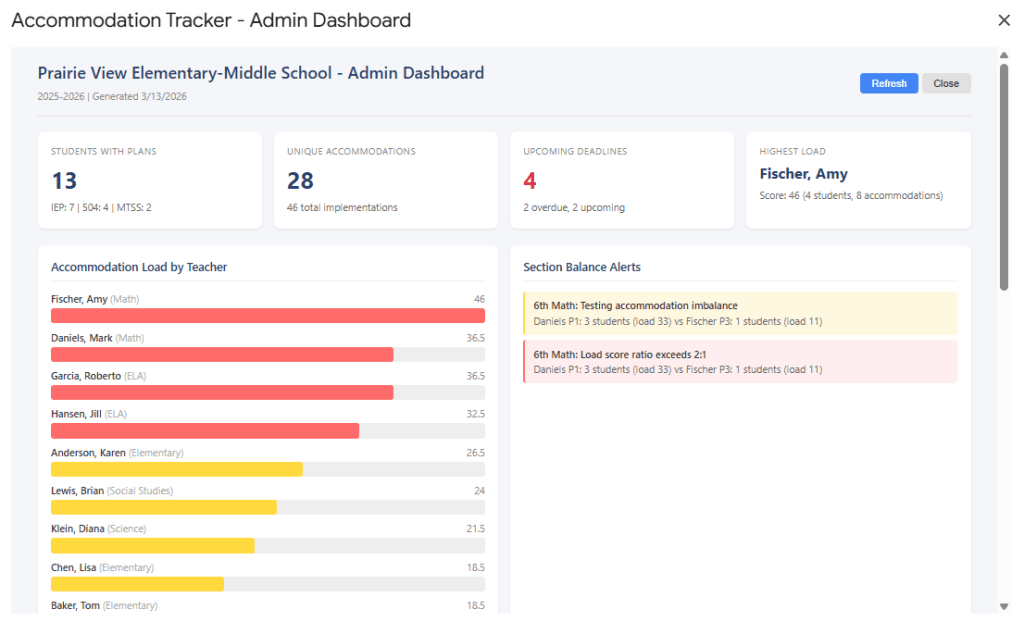
The admin dashboard gives building-level visibility into accommodation distribution, teacher load scores, section balance alerts, and upcoming compliance deadlines. It runs directly from the spreadsheet menu.
Get Started
Clicking the link above creates your own independent copy of the entire tool, including all the sheets, the Apps Script code, and the pre-populated Accommodation Library. The original is not affected, and your copy is entirely yours to modify. The sheet comes loaded with fictional sample data for a school called “Prairie View Elementary-Middle School” so you can see how the tool works before entering real student information.
If you have not used Google’s “Make a Copy” feature before, it will ask you to sign into your Google account and then place a copy of the spreadsheet in your Google Drive. Everything from this point forward happens in your copy.
Setup Guide
This walkthrough assumes you are starting from a fresh copy of the tool with the sample data still in place. The goal is to get you oriented, run a test generation using the sample data, and then prepare to replace it with your own. If you are comfortable with Google Sheets and Apps Script, you can skip ahead to Step 4 where we start configuring for your school.
Step 1: Open Your Copy and Look Around
After making your copy, you should see a Google Sheet with several tabs along the bottom: Config, Students, Teachers, Accommodation Library, and Logs. Take a moment to click through each one. The sample data gives you a sense of what goes where.
You should also see an Accommodation Tracker menu in the menu bar at the top (to the right of Help). If you do not see it, close the spreadsheet and reopen it. The custom menu loads when the sheet opens, and occasionally it takes a moment on the first load.
At this point, you should see all five tabs and the custom menu.
Step 2: Create an Output Folder
Before the tool can generate any documents, it needs a Google Drive folder to put them in. Go to your Google Drive and create a new folder. You can name it whatever makes sense for your context, something like “Accommodation Snapshots” or “SpEd Tracker Output.”
Once the folder exists, open it and look at the URL in your browser’s address bar. The folder ID is the long string of characters after the last slash. For example, if the URL is https://drive.google.com/drive/folders/1AbCdEfGhIjKlMnOpQrStUvWxYz, then 1AbCdEfGhIjKlMnOpQrStUvWxYz is the folder ID. Copy that string.
Now go back to your spreadsheet, open the Config tab, and paste the folder ID into the Value column next to Output Folder ID (row 8).
At this point, the Config tab should have a folder ID in row 8.
Step 3: Test with Sample Data
This is a good moment to see the tool in action before you change anything else. Go to the Accommodation Tracker menu and select Generate Snapshots > All Teachers.
The first time you run any function, Google will ask you to authorize the script. You will see a screen that says something like “This app isn’t verified.” This is normal for any custom Apps Script project. Click Advanced, then Go to IEP Accommodation Tracker (unsafe). The “unsafe” label sounds alarming, but it just means this is not a published app from the Google Marketplace. The script only accesses your spreadsheet and your Google Drive (specifically the output folder you just designated). Review the permissions it requests, and click Allow.
After authorization, the script will generate a classroom snapshot document for each teacher in the sample data. This may take 30 to 60 seconds depending on how many teachers have active students. When it finishes, you will see a confirmation dialog telling you how many documents were generated.
Go check your output folder. You should see several Google Docs, one per teacher, each containing formatted accommodation tables organized by class period.
At this point, you should have several sample snapshot documents in your output folder.
Step 4: Configure for Your School
Now that you have seen what the output looks like, go back to the Config tab and update the following fields with your actual information:
- School Name: Your school’s name, which appears on all generated documents.
- School Year: The current school year (e.g., 2025-2026).
- SpEd Coordinator Name, Email, and Phone: Contact information that appears in the footer of every snapshot document. Teachers can use this to reach out with questions.
- Output Folder ID: If you already set this in Step 2, leave it as is.
You can leave the remaining settings at their defaults for now. The Template Doc ID field can stay empty; the tool will auto-generate a professionally formatted template the first time you run a real generation. The warning and critical day thresholds, color settings, and testing section toggle are all covered in the “Make It Yours” section below.
At this point, the Config tab should have your school’s real information in the first six rows.
Step 5: Replace Sample Data with Real Data
This is the most time-consuming step, but it only needs to happen once. After the initial setup, you will only need to add or update individual rows as plans change.
Teachers tab: Clear the sample teachers and enter your own. Each row needs a last name, first name, email, department, and room number. The department field is used for the “Generate by Department” feature, so try to be consistent with department names.
Students tab: Clear the sample students and enter your actual accommodation data. Each row represents one accommodation for one student in one class period. Here is what that means in practice: if a student has an IEP with three accommodations and sees four different teachers, you will have up to twelve rows for that student (three accommodations times four teachers). That sounds like a lot, but the structure is what allows the tool to generate accurate per-teacher snapshots.
The key fields for each row are: student name, grade, plan type (IEP, 504, or MTSS, selected from a dropdown), case manager, teacher last name (must match the Teachers tab), period/block, course name, accommodation category (selected from a dropdown), and accommodation description (which can be selected from the Accommodation Library or typed manually). The Active checkbox in the last column controls whether a row is included in snapshot generation, so you can deactivate accommodations without deleting them.
The Accommodation Library tab comes pre-populated with common accommodations organized by category. You do not need to modify this unless you want to add accommodations specific to your context. The library feeds the dropdown on the Students tab, but manual entries are also allowed.
Step 6: Validate and Generate
Once your real data is in place, run Accommodation Tracker > Setup > Validate Setup from the menu. The validation checks that all required sheets exist, that the Config tab has the necessary values, that the output folder is accessible, and that the Students and Teachers tabs have data. It will tell you if anything needs attention.
When validation passes, you are ready to generate. Use Generate Snapshots > All Teachers to create snapshot documents for everyone, or use Select Teacher or Select Department to generate for specific subsets. Each run creates new documents in your output folder.
At this point, you have a working tool generating real accommodation snapshots for your building.
Make It Yours
Once the tool is running and generating useful output, there are several settings you can adjust to fit your workflow. None of these are required, and the defaults work well for most situations.
Compliance thresholds. The Config tab includes Warning Days for Reviews (default: 30) and Critical Days for Reviews (default: 7). These control when upcoming annual review and re-evaluation dates get flagged in the admin dashboard and compliance timeline. If your planning cycle needs a longer lead time, increase the warning days. The color-coding for overdue, warning, and OK status also lives in the Config tab and can be changed to match your preferences.
Testing section toggle. The Include Testing Section checkbox in Config controls whether the generated snapshot documents include a separate table of testing-specific accommodations. If your building does not use the tool during assessment windows, you can turn this off to keep the snapshots simpler.
The snapshot template. When the tool generates documents for the first time, it auto-creates a formatted Google Doc template and saves its ID to the Config tab. You can open that template and customize its formatting (fonts, colors, spacing, logo) to match your school’s branding. The placeholder tags like {{SCHOOL_NAME}} and {{TEACHER_NAME}} need to stay in the document for the generation to work, but everything around them is yours to change. If you ever want a fresh template, run Setup > Create/Recreate Snapshot Template from the menu.
The admin dashboard and other outputs. Beyond per-teacher snapshots, the tool includes several other features worth exploring once you are comfortable with the basics. Open Admin Dashboard launches an interactive dashboard showing building-level summary cards, teacher load scores, section balance alerts, a compliance timeline, and accommodation category distribution. Generate Admin Summary Doc creates a printable Google Doc version of the same data for sharing in meetings. Generate Testing Day Plan produces a logistics document for assessment days, automatically grouping students by their testing accommodation needs (separate setting, extended time only, read-aloud/scribe, or multiple accommodations).
The load score. You may notice that the dashboard assigns a “load score” to each teacher. This is a weighted calculation that factors in the number of students with plans, unique accommodations, accommodation category spread, testing accommodations, and singleton accommodations (accommodations that apply to only one student, which require more individualized attention). The score is not a judgment; it is a way to surface which teachers are managing the most accommodation complexity so coordinators can allocate support accordingly.
If you want to go further, the entire script is open source and written in Google Apps Script. The code is organized into separate files (Code.gs for setup and entry points, SnapshotEngine.gs for document generation, AnalysisEngine.gs for analytics, DocGenerator.gs for template operations, TemplateBuilder.gs for template creation, and Utilities.gs for shared functions). If you are comfortable with Apps Script, you can extend or modify any of it.
Connect and Continue
I built this tool because the gap between accommodation documentation and classroom implementation is a real, daily problem in schools, and the existing solutions tend to be either expensive, overbuilt for the actual need, or locked inside systems that do not share data well. This is a simpler approach: your data stays in a spreadsheet you control, the output is standard Google Docs, and the whole thing is free to use and modify.
If you run into issues, have questions about setup, or find ways to improve the tool, I would genuinely like to hear about it. Reach out at licht.education@gmail.com. If you find the tool useful, consider sharing it with a colleague who might benefit from it.
For more tools, articles, and resources on educational technology and learning design, visit bradylicht.com.
Version 1.0.0 | Licensed under CC BY 4.0
 Brady Licht