
Version note: This is the open version (v3.0.3) of the tool. A newer version with additional features is available through Compass Partners in Learning for partner districts. Everything described on this page is fully functional and actively used by several districts.
What and Why
If you are a principal or instructional coach doing classroom walk-throughs, you have probably been through some version of this cycle: create a Google Form with the Danielson components you want to track, submit it from your phone in the hallway, then manually pull together the data later when you want to share feedback or look at trends. It works. But every time you want to email the teacher a summary, generate a document for the file, or see patterns across your building, you are doing that work by hand.
This tool is a Google Sheets-based web app that handles the same walk-through observation process with a few meaningful improvements over a standard form. It gives you a mobile-friendly observation form branded to your school, automatic HTML-formatted emails to both the observer and the teacher, optional Google Doc generation for each observation, a dashboard for tracking patterns over time, and the ability to customize which Danielson components appear on your form. If you want to go further, there is also an optional AI feedback feature that generates coaching suggestions based on the observation data, though that requires a separate API key and is entirely opt-in.
The audience here is building-level administrators and coaches who are already doing walk-throughs using the Danielson Framework and want a cleaner workflow without paying for a dedicated observation platform. This is not a full evaluation system, and it does not attempt to replace formal observation protocols that require rubric scoring, evidence documentation, or multi-observer calibration. It is a walk-through tool, designed to make the informal observation loop (observe, document, share, track) faster and more consistent.
You will need a Google Workspace account to use this. The tool runs entirely within Google’s ecosystem, using Sheets as the backend, Apps Script as the engine, and a deployed web app as the form interface. There is no external hosting, no database, and no subscription. One thing worth noting: a few districts have run into situations where their IT department’s email filtering blocks the automated notification emails. If that happens, the observations still save to the sheet and generate documents normally, but you may need to work with your tech team on the email piece.
Quick Look
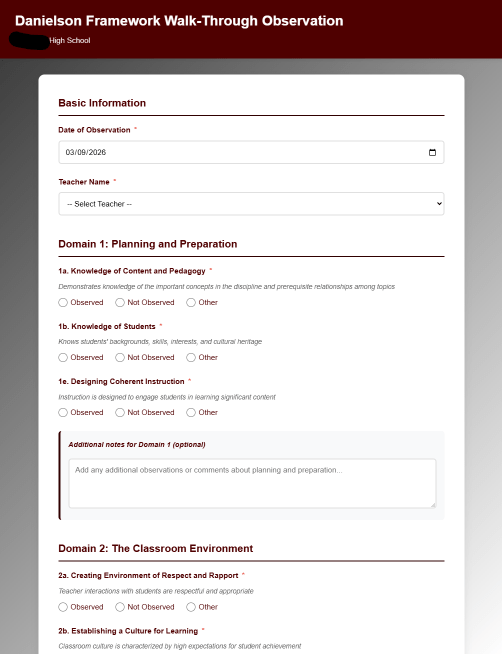
The form adapts to your school’s branding colors and name, configured from a simple settings tab in the spreadsheet.
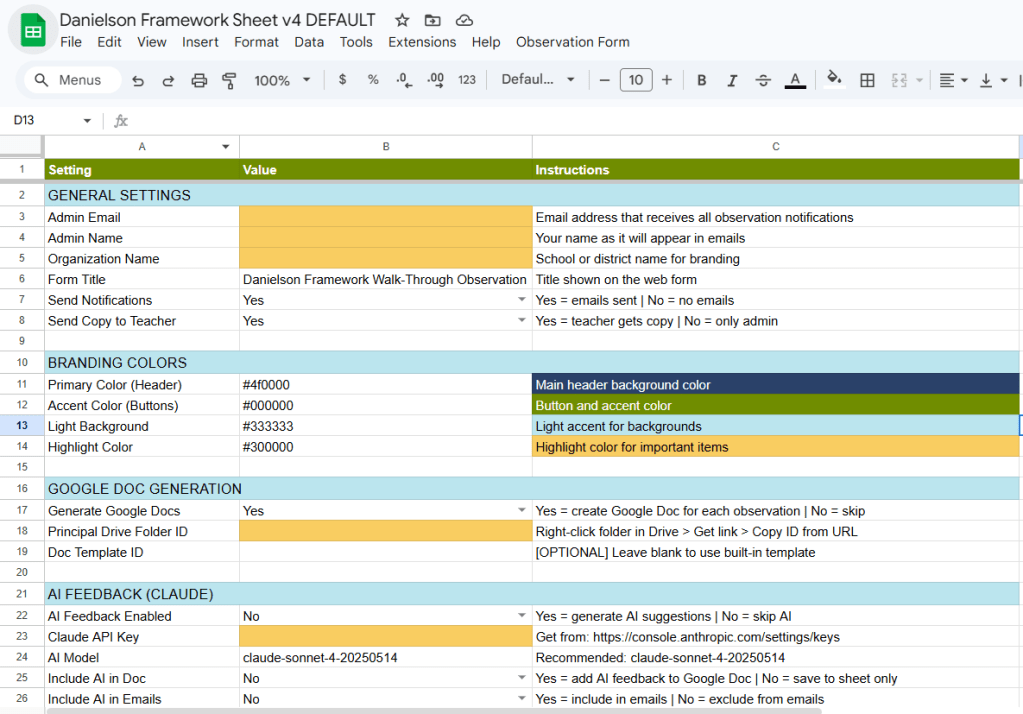
Everything you need to customize lives in the Config tab. Yellow cells are the ones that need your information before the tool will work.
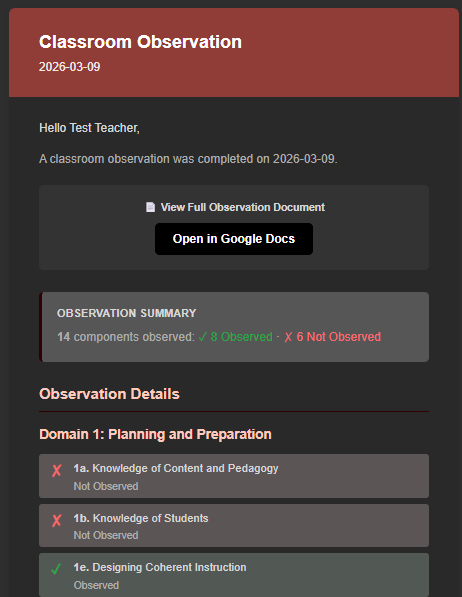
After each observation, the teacher receives a formatted email summarizing what was observed, with an optional link to the full Google Doc.
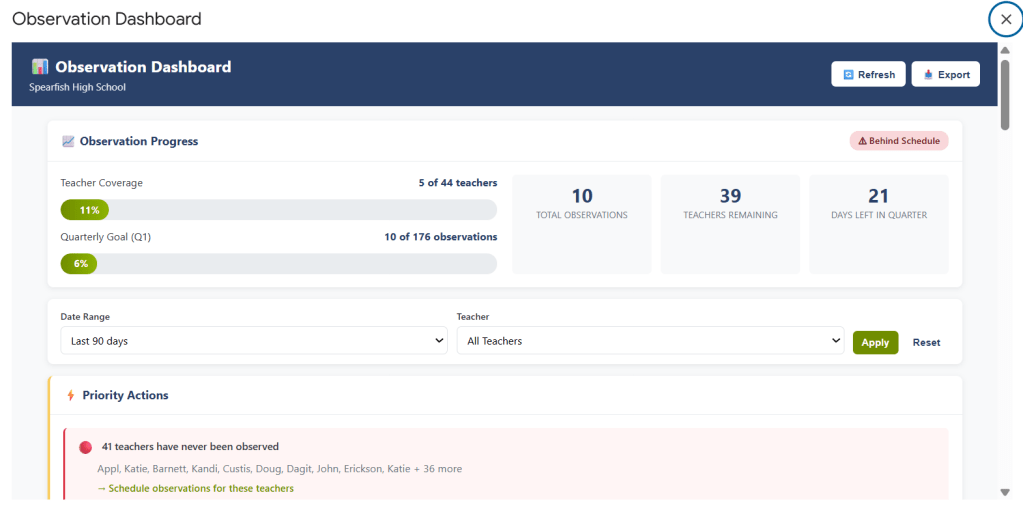
The built-in dashboard gives you a building-level view of observation coverage, component trends, and which teachers are due for a visit.
Get Started
When you click that link, Google will ask you to make a copy of the spreadsheet. This gives you your own independent version of the tool. Nothing you change in your copy affects the original, and nothing in the original will change your copy. You are the owner of your version, and you control who else can access it.
Your copy will include the spreadsheet with all its tabs (Config, Teachers, Questions, Observations, Logs), the Apps Script code that powers the web app, and the HTML files for the form and dashboard interfaces. All of it comes along automatically when you make the copy.
Walk Through It With Me
This setup has a few more steps than a typical copy-and-go sheet tool, because you are deploying a web app. That said, none of the steps are technically difficult. If you can fill in cells in a spreadsheet and click through a few menus, you can get this running. The whole process takes about 15 to 20 minutes the first time.
Step 1: Open Your Copy and Run Setup
After making your copy, you should see a spreadsheet with several tabs already created. Look for a custom menu at the top of the screen called “Observation Form.” If you do not see it right away, refresh the page. Google sometimes takes a moment to load custom menus.
Click Observation Form > Setup Spreadsheet. This will ensure all the sheets are properly configured and formatted. Google will ask you to authorize the script the first time you run it. This is the standard Apps Script authorization prompt, and it looks more alarming than it is. The script needs permission to read and write to your spreadsheet, send emails on your behalf, and create documents in your Drive. These are the core functions of the tool, and it will not do anything outside of what is described here. Click through the authorization, and the setup will complete.
At this point, you should see a confirmation dialog telling you setup is complete.
Step 2: Configure Your Settings
Go to the Config tab. This is where all the settings live, and the tab is organized into labeled sections. Focus on the General Settings section first. There are three cells highlighted in yellow that you need to update before anything else:
Admin Email is the email address where observation notifications will be sent. This should be the principal or lead observer’s email. Admin Name is the name that will appear in the footer of emails and documents. Organization Name is your school or district name, which shows up in the form header, emails, and generated documents.
The other settings in this section control whether emails are sent at all and whether teachers receive a copy. Both default to “Yes,” which is what most buildings want.
If you already know how to find a Google Drive folder ID, skip ahead to Step 4. Otherwise, continue through the next steps in order.
Step 3: Add Your Teachers
Go to the Teachers tab. You will see a couple of example rows highlighted in yellow. Delete those or replace them with your actual teachers. Each row needs a teacher name, their email address, and “Yes” in the Active column. The names you enter here are what will appear in the dropdown on the observation form, so use whatever format your building prefers (first name last name, last name first, etc.).
At this point, you should have at least one real teacher listed with Active set to “Yes.”
Step 4: Choose Your Danielson Components
Go to the Questions tab. Every Danielson Framework component across all four domains is listed here. The Active column controls which ones appear on your form. By default, the tool activates a subset of commonly observed components (all of Domain 2 and 3, plus selected items from Domains 1 and 4), but you can activate or deactivate any component by changing its Active value to “Yes” or “No.”
This is one of the advantages over a static Google Form. If your building is focusing on specific components this semester, you can adjust the form to match without rebuilding anything.
You can preview which questions are active by clicking Observation Form > Preview Active Questions from the menu.
Step 5: Validate and Deploy
Before deploying, run Observation Form > Validate Setup to check that everything is configured correctly. The validator will tell you if any required fields are still set to the default “CHANGE-THIS” placeholder, if you have teachers and questions active, and whether optional features are configured.
Once validation passes, deploy the web app:
- Go to Extensions > Apps Script to open the script editor
- Click Deploy > New deployment
- Under “Select type,” choose Web app
- Set “Execute as” to Me (your account)
- Set “Who has access” to Anyone (this is necessary for the form to be accessible on mobile devices without requiring a login)
- Click Deploy and copy the URL
That URL is your observation form. Bookmark it on your phone, and you are ready to go. You can also find the URL later by clicking Observation Form > View Form URL from the spreadsheet menu.
At this point, you should be able to open the URL on your phone and see a branded form with your school name, your teacher list in the dropdown, and your active Danielson components.
Step 6: Test It
Click Observation Form > Test Form Submission to run a test observation through the system. This will create a test entry in your Observations sheet and send notification emails if you have emails enabled. Check your inbox to confirm the HTML email arrived and looks right.
If the test email does not arrive, check your spam folder first. If it is not there either, your school’s email filtering may be blocking it. The observation data still saves to the spreadsheet regardless of whether emails go through, so the tool remains functional. You may need to talk with your IT department about whitelisting the sending address.
Common First-Run Issues
“I don’t see the Observation Form menu.” Refresh the page. If it still does not appear, go to Extensions > Apps Script, then close the script editor and return to the spreadsheet. The menu should load.
“The authorization screen says this app isn’t verified.” This is normal for any Apps Script project that has not been submitted to Google for review. Since you own the script (it is in your account), you can safely proceed by clicking “Advanced” and then “Go to [project name].”
“Emails are not arriving.” Check spam first. If your district uses strict email filtering, the automated emails may be blocked. The observations still save to the sheet and generate documents. Work with your IT team if email delivery is important to your workflow.
“The form shows no teachers in the dropdown.” Make sure you have at least one teacher in the Teachers tab with Active set to “Yes” and that the name does not contain “EXAMPLE.”
Make It Yours
Once the basic setup is working, there are several directions you can take the tool depending on what matters to your building.
Safe to Change Anytime
The branding colors in the Config tab affect the form, emails, and generated documents. If your school has specific brand colors, you can update the Primary Color, Accent Color, Light Background, and Highlight Color values. Use hex color codes (the format that starts with #). The defaults are Compass Partners colors and will work fine if you do not have specific branding needs.
The active questions can be changed at any time. If your walkthrough focus shifts mid-year, just update the Active column in the Questions tab and the form will reflect the change immediately. No redeployment needed.
Teacher list updates also take effect immediately. Add or remove teachers as your staff changes.
Optional Features Worth Exploring
Google Doc generation creates a formatted document for each observation and saves it to a Drive folder you specify. To enable it, set “Generate Google Docs” to “Yes” in the Config tab and paste the ID of your target Drive folder. (To get a folder ID, right-click the folder in Google Drive, click “Get link,” and copy the long string of characters from the URL.) The tool will also share each document with the teacher automatically.
AI feedback uses the Claude API to generate coaching suggestions based on the observation data. This is entirely optional and requires a Claude API key from Anthropic (console.anthropic.com). If you enable it, the AI-generated feedback can be included in the Google Doc, the notification emails, or both, depending on how you configure it. The feedback is clearly labeled as AI-generated and should always be reviewed before acting on it.
The dashboard is accessible from the spreadsheet menu under Observation Form > View Dashboard. It shows observation progress toward quarterly goals, teacher coverage, component-level strengths and growth areas, and priority actions like which teachers have not been observed recently. The dashboard works with whatever data is in your Observations sheet and does not require any additional setup.
If You Want to Go Further
The entire codebase is in the Apps Script editor (Extensions > Apps Script). The main script file handles form submission, email generation, document creation, and AI integration. The HTML files control the form and dashboard interfaces. If you are comfortable reading Google Apps Script (which is essentially JavaScript), you can modify the AI prompt, adjust email templates, change the dashboard calculations, or add new features. That said, if you are not sure what a piece of code does, it is better to leave it alone. The tool works well out of the box, and the customization options in the Config tab cover most use cases without touching code.
Connect and Continue
This tool started as a way to give our partner districts something better than a Google Form for walk-throughs without asking them to buy an observation platform. The open version shared here is a slightly earlier build than what we currently deploy, but it is fully functional and still in active use.
If you run into issues during setup, have questions about how to configure a specific feature, or have ideas for improvements, I would be glad to hear from you. Reach out at licht.education@gmail.com.
 Brady Licht