
A Google Sheet that tracks one item across a group of people and emails them about it on a schedule until they are done.
Also shared under the name of “Communication Manager” and “ComMan”
Updated September 2026 (version 2.1.0). The tool now walks you through its own setup, so the eleven-step guide that used to live on this page has been replaced with two steps and some optional reading. [Existing copies: re-copy needed / can be updated in place, see note in chat]
If you have ever been the person responsible for making sure forty other people turn something in by a date, you know the shape of this problem. The work is not the collecting. The work is the chasing. You keep a spreadsheet of who owes you what, you set a calendar reminder to yourself to look at the spreadsheet, and then you write essentially the same email over and over with a different name at the top of each one. Somewhere in the third round of follow-ups you lose track of who you already nudged, and you either skip someone who needed the reminder or nudge someone who already sent it in two weeks ago.
This tool is the part of that job a script can do. You keep one row per person or organization on a Tracker tab, with a status and a due date. You write your reminder templates once. You set rules for when each message goes out relative to that due date, something like one week before, on the day, three days overdue, and a thank-you when the status flips to done. After that, a daily check runs each morning and sends only what is actually due, only to the people who have not finished, and only once per cycle. When you change someone’s due date, their reminders re-arm for the next round, which is how the whole thing handles recurring reporting without any additional setup.
It is a Google Sheet with a script in it. There is no account to make, no service to sign up for, and nothing leaves your Google Drive. The reminders come from your own address, so replies come back to you rather than to a system.
It is also deliberately general. Nothing in the code knows what your item is or who your people are. The item is a label you set, the statuses are rows you can rename, the messages are your own text, and any column you add to the Tracker becomes a merge field you can drop into a template. That means the same sheet works for a district collecting compliance forms from building leaders, a nonprofit collecting partner reports each quarter, a team lead tracking a recurring deliverable, or a coordinator chasing signed agreements. I built the original versions as two separate tools for two separate projects before noticing they were the same tool with different words in the cells, so this is what came out of collapsing them.
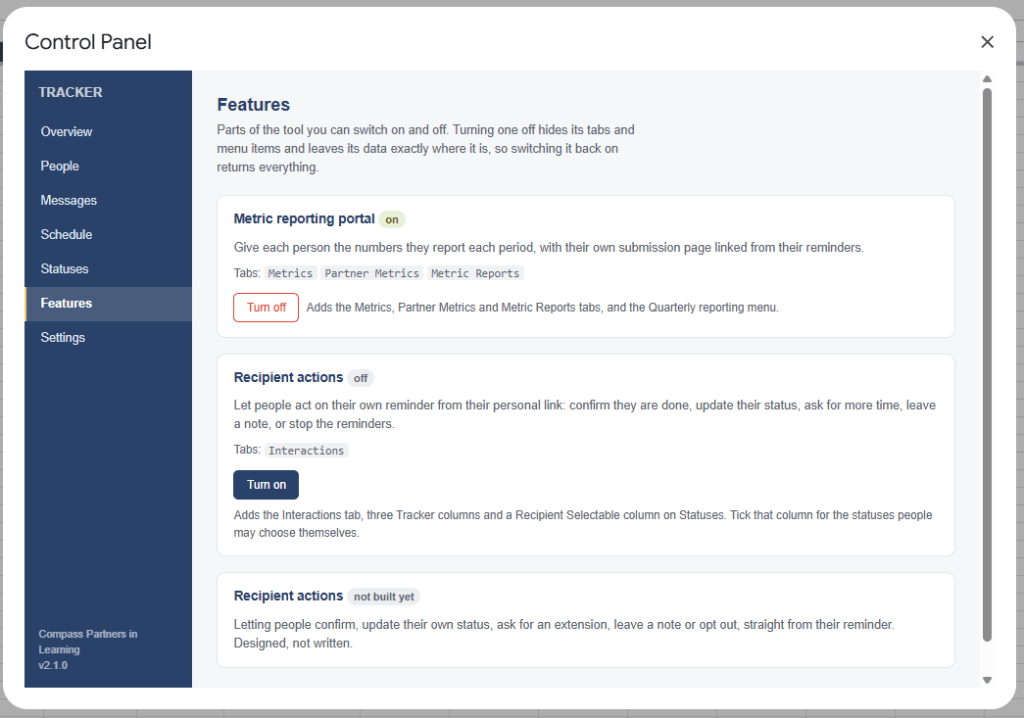
Two optional layers sit on top of the reminders, both off by default. One handles the case where what you are collecting is numbers rather than a document, so each person gets a personal page to submit their values against their own baseline and target. The other lets people act on the reminder itself, confirming they are done, asking for more time, or asking you to stop. Both are described further down, and both need one extra step outside the spreadsheet, which is why they ship turned off.
A few things it does not do, because scope honesty saves everyone time. It tracks one item per person per cycle, not a list of deliverables each, so it is a reminder system rather than a project management tool. It does not send attachments, CC anyone, or escalate to a supervisor. It has no approval workflow, so when someone submits a number or a status change through their page it is applied and logged immediately rather than queued for your review. It needs a Google account and lives entirely inside Google Sheets and Apps Script, and it sends through your own Gmail, which means your account’s daily sending limit is the ceiling on how many reminders can go out in a day. A personal Gmail account can send on the order of a hundred messages a day and a Workspace account considerably more, so for most uses the limit is nowhere close to binding, but a list of several thousand people would hit it.
What You’ll See
Get Started
Making a copy gives you your own independent version of the sheet and the script attached to it. Nothing you do afterward touches the original, and nothing I do to the original afterward changes yours. The copy lands in your own Drive, owned by you, and the emails it sends come from your account rather than mine.
The tool is free and licensed CC BY 4.0. It is yours to change, and the code is right there under Extensions and then Apps Script if you want to read it.
Copying is step one of the setup below, so go ahead and make the copy now and then keep reading with your own sheet open in another tab.
Setting It Up
There used to be eleven steps here. The tool can now walk you through its own setup, so there are two.
1. Make a copy. The link above opens a copy in your own Drive. It arrives with five example organizations already in it, so there is something to look at before there is anything real. The walkthrough offers to clear them when you paste your own list in, and Tracker, then Setup, then Sample data will put them back or take them out again at any point.
2. Open the Tracker menu and choose Get started. The Tracker menu sits to the right of Help. If it is not there, reload the page and give it a few seconds, because the menu is built by the script when the sheet opens and on a fresh copy it sometimes takes a moment to appear.
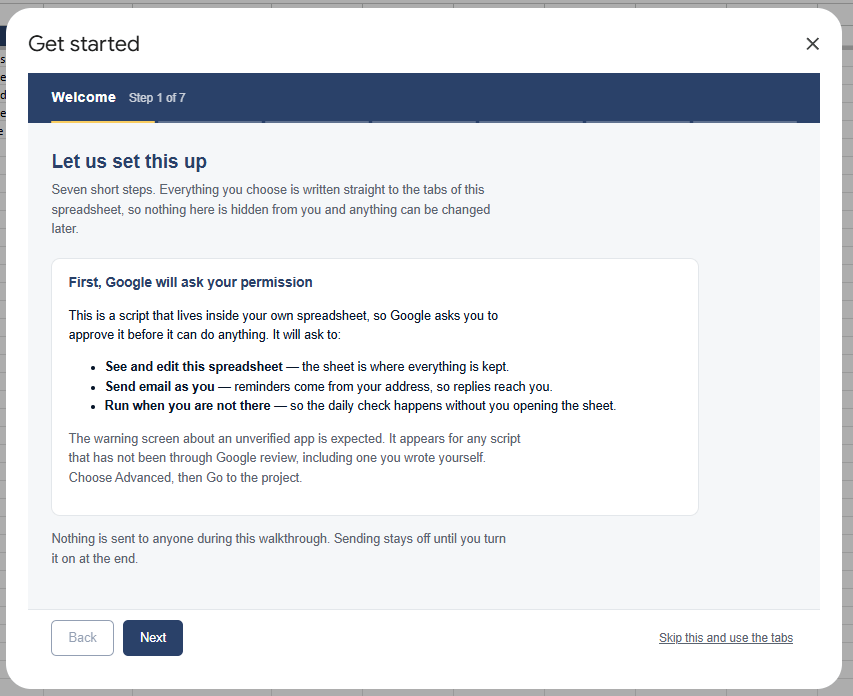
The first time you choose Get started, Google will stop you with a screen saying the app is not verified and asking whether you want to continue. This is expected, and it is worth understanding rather than clicking through. The script lives inside your own sheet, and it is asking for your permission to read and edit that sheet, to send email as you, and to run once a day when you are not there. The warning appears for any script that has not been through Google’s review process, which is a review of the developer rather than of the code, and it would appear for a script you wrote yourself this morning. Choose Advanced, then the link at the bottom to continue, and approve the permissions it asks for.
After that, the walkthrough takes seven short steps: what you are chasing, who you are chasing, when reminders should go out, and a preview of exactly what would send today. You can paste your list straight in from another spreadsheet, one person per line with name, contact, and email.
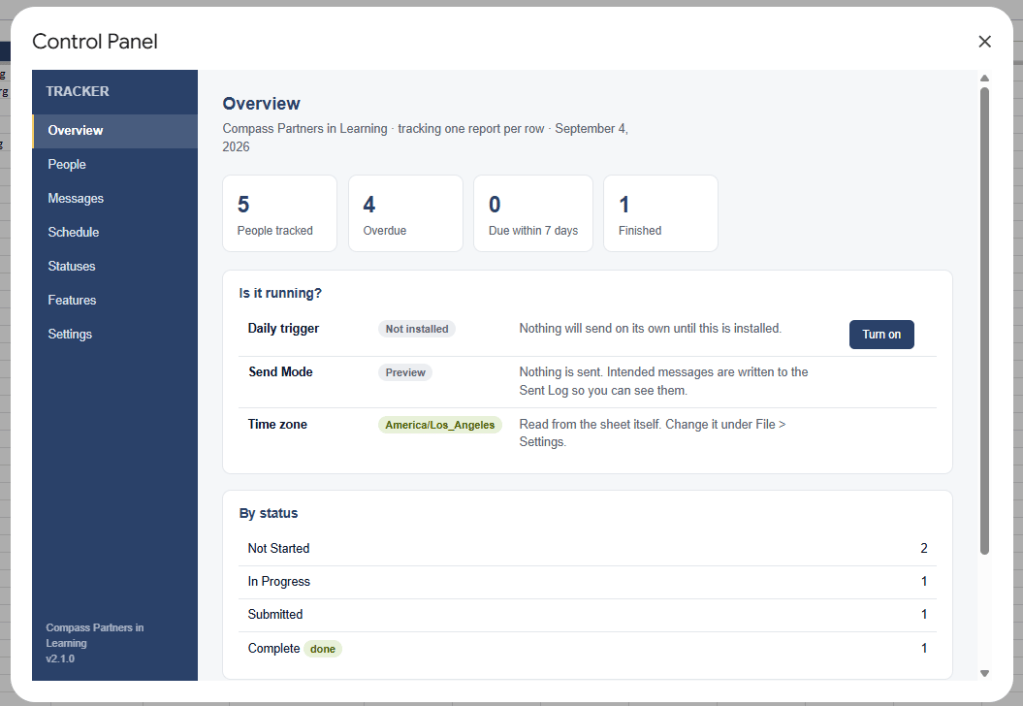
Nothing sends until you say so. The tool starts in Preview mode, which writes down what it would have sent so you can look at it first, for as long as you like. When the preview looks right, switch Send Mode to Auto in the Control Panel and the daily check does the rest.
That is the whole reminder system. Everything below is optional reading for people who want to know what is happening underneath, or who want one of the two extra layers.
How It Works, for the Curious
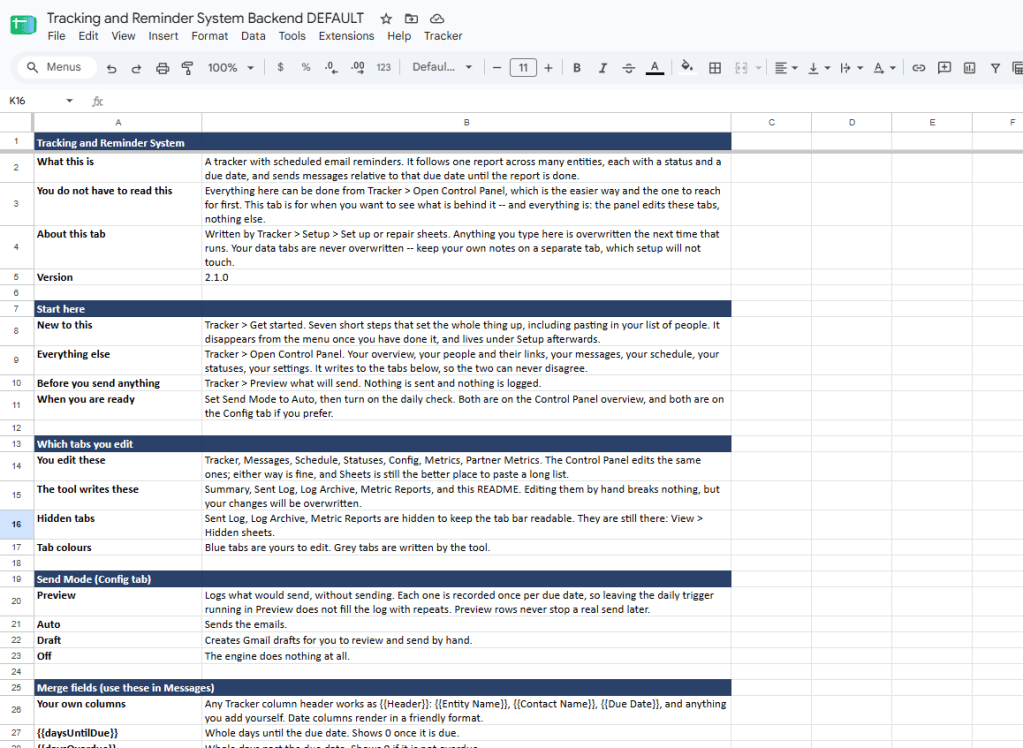
The walkthrough sets all of this up for you, and the Control Panel (Tracker, then Open Control Panel) changes any of it later.
The sheet is the database. There is no hidden state anywhere. Every setting, message, and rule is a cell on a tab you can read, and the Control Panel edits those same cells. If the panel and the sheet ever disagree, the sheet is right. That is deliberate. It means you can always look, always fix things by hand, and never be locked out of your own data by a broken screen.
Reminders are timed from a due date. Each person has a due date. Each rule says how many days before or after it to send something: a week before, on the day, three days after. Change someone’s due date and their reminders start again for the new cycle, which is how recurring reporting works without any extra bookkeeping. Rules that apply only to finished statuses are the one exception. They ignore their offset and fire as soon as someone reaches that status, because a thank-you timed to the due date would leave early finishers waiting and late finishers unthanked.
It will not send twice. Every send is recorded, and a rule reaches a person once per due date. If the daily run is missed, which Google’s schedulers do occasionally, the next one catches up, but only within a window you set. Without that window, installing the tool on a list that already has history would fire off every reminder that was ever technically due, which is a memorable way to introduce yourself to forty people. With it, stale reminders stay quiet. If you want to deliberately catch everyone up, raise the number, run once, and set it back.
One thing worth knowing before you rely on it. Renaming a rule re-arms it. What has been sent is recorded against the rule’s name, so a rule called something new looks like a rule that has never run, and everyone it already reached this cycle can hear from it again. The Control Panel warns you when you are about to do this. Changing a rule’s wording, timing, or audience is free. Only the name matters.
The Optional Layers
Let people report numbers. If you collect figures each quarter, each person can get their own page, linked from their reminder, to type them in. No Google account is needed on their end. You see progress against each person’s own baseline and target in their reminders, on the dashboard, and on their own page.
Let people act on their reminder. They can confirm they are finished, update their own status, ask for more time, leave a note, or ask you to stop. Every action is written down with what it changed, and asking to stop is honored immediately. Nothing is offered to anyone until you say which statuses they are allowed to choose.
Both need one extra step. Reminders work the moment you finish the walkthrough. The two features above hand out a personal link, and a link needs somewhere to point, so the script has to be published as a web app first. From your sheet, open Extensions and then Apps Script, then Deploy, then New deployment, then choose Web app as the type. Set Execute as to Me and Who has access to Anyone. Then run Tracker, then Setup, then Set up portal, which asks you to paste the address back in and checks it before anyone else sees it.
Setting access to Anyone feels alarming the first time and deserves an explanation. The page runs with your permission to write to your sheet, and anyone who reaches the URL can load it. What protects the data is that a bare URL shows nothing useful. Each person’s link carries a signed token that identifies their row specifically, the signature is checked before anything renders, and the tokens expire on a schedule you set. Someone would need a valid signed link to see or submit anything, and a link only ever reaches that one person’s own row.
The paste-it-back step is not busywork either. A script cannot reliably tell which of its own deployments is the public one, and picking the wrong one produces a link that works perfectly for you and shows everyone else a Google Drive error. Pasting it in once removes the guess.
Questions People Ask
Does this send email from your servers? No. There are no servers. It runs in your Google account and sends as you, within the normal Gmail sending limits.
What if I want to change the wording? The messages are a tab in the sheet. Edit them there or in the Control Panel; both write to the same place. Merge fields in double curly braces fill themselves in from each person’s row, including any column you add yourself, so a column called Region can be dropped into a message as {{Region}}.
A reminder did not go out. Why? The README tab has a checklist for exactly this, in the order the tool actually checks things. It is the single most useful thing in the sheet, and it is faster than guessing.
Can I stop it? Set Send Mode to Off, or remove the daily check. Both are one click in the Control Panel. Nothing is lost either way, because turning anything off in this tool never deletes anything.
Can I try it without emailing anybody? That is the default. Preview mode records what it would have sent and sends nothing.
What happens to my data? It stays in your spreadsheet. Deleting the sheet deletes everything. Nothing is reported anywhere, and there is nothing for me to see.
Questions and Ideas
If something in here does not work, or works in a way that surprises you, I would like to know. The same goes for the case you are trying to solve that this does not quite cover. Several of the sharper edges in this version exist because someone described a situation I had not thought about, and the walkthrough itself exists because the old setup guide was long enough that people were getting stuck partway through it. You can reach me at licht.education@gmail.com.
The tool is licensed CC BY 4.0. Copy it, change it, use it in your district or organization, and build something better out of it if you can.

