
Version 1.0. Shared under CC BY 4.0.
Most schools already collect behavior data in some form. A Google Form gets shared with staff, the responses pile up in a sheet, and by October the sheet has hundreds of rows that nobody has time to read. When a team meeting comes around, someone filters and counts by hand to answer basic questions like where incidents are happening or whether things are getting better. The other common route is a paid behavior platform or the behavior module in a student information system, which can work well but costs money every year and puts a school’s data inside someone else’s product.
The General Behavior Tracker sits between those two options. Staff log a behavior entry from their phone in about 30 seconds: they pick the student, pick what happened, pick where, and tap Save. Everything else on the entry page is optional and tucked behind an “Add details” button. Those entries land in a Google Sheet that the school owns, and the sheet turns them into a Dashboard and a Students view that answer the questions teams actually ask. Which behaviors are we seeing most? Where and when do incidents happen? Is this student’s week getting better or worse? Administrators get an email right away for serious entries, and homeroom teachers can get a daily summary for their own students.
It is built for a few different situations, and setup asks which one fits you. A single teacher can use it for a handful of students. A special education team can use it to track a caseload closely, with intensity and duration on every entry. A whole building can use it as one place for entries from all staff. A district that needs to document restraint and seclusion can turn on crisis documentation, which only switches on after the person setting it up agrees to review the crisis fields against district policy.
There are also things it intentionally does not do. It is not a student information system, and it does not track consequences, suspensions, or parent contact in this version. It does not send texts, hold photo attachments, or offer a parent portal. It does not use AI anywhere. It records what staff enter, and it does not replace your district’s procedures for notifying families or reporting incidents. One copy serves one school, so a district with several buildings would set up one copy per building.
You will need a Google Workspace account at your school or district, because the entry page only works for people signed in to your school’s domain. Personal Gmail accounts are not supported. The person who sets it up also needs permission to publish an Apps Script web app. Many districts allow this by default, and the setup steps include a ready-to-send note for your tech coordinator if yours does not.
What happens to student information?
Because this tool holds student names and behavior records, it was built around a few rules that cannot be switched off in Settings. The entry page in a staff member’s browser never receives Student IDs or anyone’s email address other than their own; students are identified there by a scrambled key. Alert emails never include note text, crisis details, or Student IDs, and each one points back to the sheet for the full entry. The official log is append-only, so an entry cannot be quietly changed after the fact. Finally, all of it stays inside your Google Workspace. The tool does not connect to any outside service, and the only third-party code in it is a small, open-source QR code generator that runs inside the Share dialog.
That said, the copy you make is yours, and so are the decisions about who has edit access to the sheet and how long records are kept. Treat the sheet the way you would treat any other file that holds student records under your district’s FERPA practices.
The tracker builds on the Spearfish behavior tracker created by Dr. Ryan Young.
What You’ll See
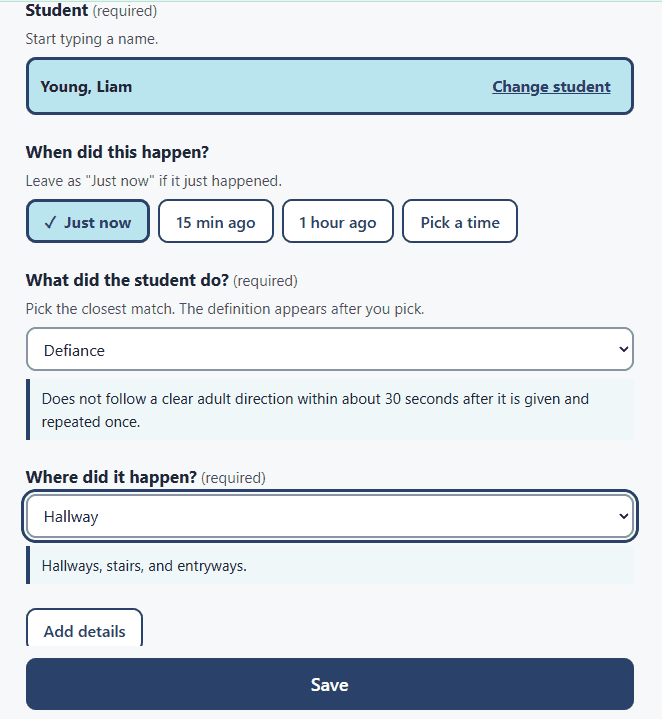
The entry page staff use. They search for a student, pick what happened and where, and the definition of each choice appears as soon as it is picked. Everything else sits behind Add details.
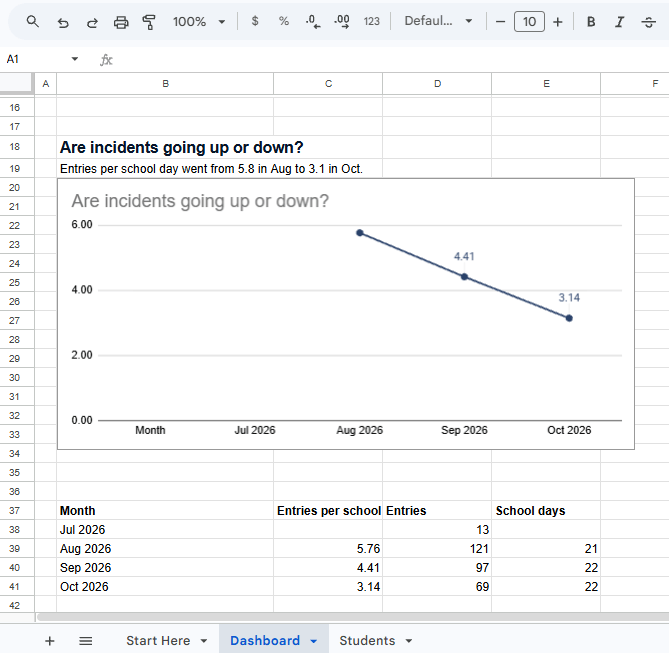
The Dashboard, shown with sample data. Each chart is titled with the question it answers and has a plain sentence above it that states the main finding.
Get Started
This is Step 1. When you click the link, Google asks if you want to make a copy. Click Make a copy, and you get your own independent version of the spreadsheet in your Google Drive, with the script that runs it already attached. Nothing you do in your copy affects the original or anyone else’s copy, and I cannot see your copy or anything in it.
Make the copy while signed in to your school Google account, not a personal one. The account that owns the copy is the account that sends alert emails and publishes the entry page, so it is worth choosing that account on purpose. For a building, that might be an administrator or a behavior specialist rather than whoever happens to be setting things up.
Walk Through It With Me
Setup takes about 20 to 30 minutes if your roster is ready. Most of it happens in a guided dialog inside the sheet, and the Start Here tab keeps track of where you are, so you can stop and come back.
Step 1: Open your copy and find the menu
Open the copy you just made. After a few seconds, a General Behavior Tracker menu appears at the top of the sheet, to the right of Help. If it does not show up, reload the page and give it a moment.
You will notice that only a few tabs are showing: Start Here, Dashboard, and Students. The rest (the roster, settings, and the official log) are hidden on purpose, and the menu opens them when you need them. This keeps staff with edit access from changing settings by accident.
At this point, you should see the General Behavior Tracker menu and the Start Here tab.
Step 2: Approve the permissions
The first time you choose anything from the menu, Google asks you to authorize the script. This is the step where people most often stop, so here is what is going on.
First you will see a box saying authorization is required. Click Continue and choose your school account. Next, you will likely see a screen that says Google hasn’t verified this app. That is normal for any script that lives inside a copied spreadsheet rather than in Google’s app marketplace, and it does not mean something is wrong. Click Advanced, then Go to General Behavior Tracker (unsafe). The word “unsafe” is Google’s standard label for unverified scripts, and it shows up for everything in this category.
The last screen lists what the tool is asking to do. When it appears, check Select all before you click Continue. In plain terms, the tool is asking to 1) read and edit this one spreadsheet (not the rest of your Drive), 2) send email from your account for alerts and summaries, 3) run on a schedule so the daily summary goes out, 4) show its setup and settings dialogs, and 5) see your email address so it knows who owns the tracker. None of that leaves your Google account.
At this point, the menu item you clicked should run. If it does not, click it again; the first click sometimes only finishes the authorization.
Step 3 (optional): Try it with sample data
If you want to see what the reports look like before you put real students in, check whether your copy shows a “Sample data is loaded” banner. If it does not, choose General Behavior Tracker > Sample data > Load sample data. Sample data is 300 made-up entries across 12 weeks for the sample roster that ships with the sheet. Open the Dashboard and Students tabs to look around. The sample data has a few patterns built into it, such as one student whose incidents cluster on Monday mornings at recess, so you can see how the finding sentences pick things up.
Every sample entry is labeled, and a banner reminds you while it is loaded. When you are done, choose Sample data > Remove sample data. It removes only the sample entries. Setup will not finish while sample data is loaded, so that your reports start clean.
Step 4: Run setup, part 1 (your school)
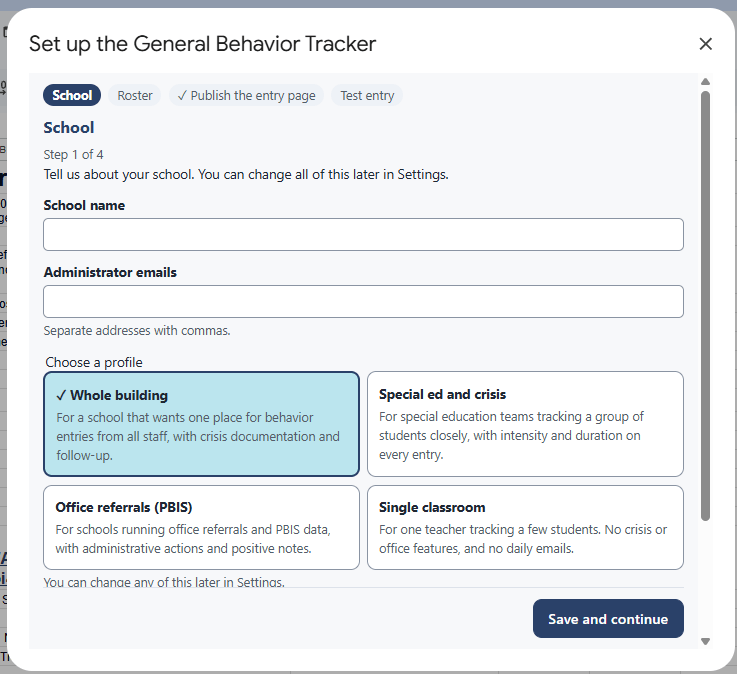
Choose General Behavior Tracker > Set up. The dialog walks through four parts, and the first asks for your school name, the email addresses of the administrators who should get alerts (separated by commas), and a profile.
[Image: Set up dialog, step 1 with the four profile cards]
The profile is a starting point that sets which questions show on the entry page and who gets emailed about what. You can change any of it later in Settings, so do not spend long here.
- Whole building is for a school that wants one place for entries from all staff.
- Special ed and crisis adds intensity and duration to every entry, for teams tracking a group of students closely.
- Office referrals (PBIS) puts the “Why do you think it happened?” question on the main page.
- Single classroom is for one teacher tracking a few students, with no crisis questions and no daily emails.
Some of the profile cards mention features like follow-ups, office actions, and positive notes. Those are planned for a later version. In version 1.0, the profiles set your questions and notifications, and they turn on crisis documentation and case manager alerts where those fit.
If the profile you pick includes crisis documentation, you will see an acknowledgment. It asks you to confirm that your district will review the crisis fields, hold types, and alert settings against its restraint and seclusion policy before staff use them. If you are not ready to make that commitment, leave it unchecked. Setup finishes with crisis documentation turned off, and Start Here reminds you that you can turn it on later in Settings once that review is done.
At this point, the dialog moves on to the roster, and you may get a test email from the tracker in the next few minutes.
Step 5: Run setup, part 2 (your roster)
Choose General Behavior Tracker > Edit roster (or follow the link in the dialog) to open the Roster tab. It has a sample roster in it. Replace it with your students, one per row, under these columns:
- Student ID is required and has to be unique. It never appears on the entry page.
- Last Name and First Name are what staff see when they search.
- Grade, Homeroom, and Group decide how students are grouped in the picker. Fill in whichever one you plan to group by. Grade is the default.
- Homeroom Email is who gets the daily summary for that student.
- Case Manager Email is optional and only used if you turn on case manager alerts.
- Active is TRUE or FALSE. Set a student to FALSE when they leave, rather than deleting the row, so their past entries stay connected to them.
The easiest way to fill this in is to export a student list from your student information system and paste the columns in. If you know how to do that, you can skip ahead to clicking Check roster in the dialog.
Check roster counts how many students are ready and lists any problem rows by row number, such as a duplicate Student ID or an email address with a typo. The Roster tab also shades duplicate IDs and bad emails red as you type. If two students in the same grade share a name, the entry page adds their homeroom or group in parentheses so staff can tell them apart.
At this point, the dialog should say how many students are ready for the entry page, with no problem rows.
Step 6: Run setup, part 3 (publish the entry page)
This is the one step that happens outside the sheet, and it is the step that feels the most technical. You are publishing the entry page as a web app, which is what lets staff use it without having access to the spreadsheet itself.
- In the sheet, click Extensions > Apps Script. A new tab opens with the script editor.
- Click Deploy > New deployment in the top right.
- Click the gear icon next to “Select type” and choose Web app.
- Check that Execute as says Me and Who has access says Anyone within your school’s domain.
- Click Deploy, then approve the permissions if Google asks again.
- Go back to the tab with your sheet. The setup dialog notices the new web app on its own and turns this step green.
The two settings in step 4 matter, so here is why. “Execute as: Me” means the entry page saves entries using your account, which is why staff can submit without being able to open the sheet. “Anyone within” your domain means only people signed in with a school account can use it. If either setting is wrong, the entry page shows a message saying it was published with the wrong setting and does not save anything.
If this step does not turn green after a minute, copy the Web app URL from the deploy confirmation box (it starts with https://script.google.com/ and ends with /exec) and paste it into the box in the dialog.
If Google tells you that you are not allowed to deploy, your district limits who can publish web apps. Click Note for your tech coordinator in the dialog. It gives you a short, ready-to-send message that explains what the tool needs and asks them to either allow it or deploy it for you.
At this point, the dialog should show “The entry page is published” with your link.
Step 7: Run setup, part 4 (save a test entry)
Open the entry page link on your phone, sign in with your school account if it asks, and save an entry for any student. Back in the sheet, the dialog notices the entry, sets it aside so it never counts in your reports, and finishes setup. You should also get a test alert email, which confirms that notifications reach you.
At this point, every row in the Start Here status block should say Done, and Set up disappears from the menu because you no longer need it.
Step 8: Share it with staff
Choose General Behavior Tracker > Share the entry page. The dialog has the link, a Copy button, and a QR code. The Print button makes a one-page sign with the QR code and a line telling staff to scan it and sign in with their school account. You can post it in classrooms and offices, or send the link in a staff email. Staff do not need edit access to the sheet, and in most cases they should not have it.
[Image: Share the entry page dialog (gbt-share-dialog.png, already in your Media Library)]
Common first-run hiccups
Staff see “This tracker isn’t set up yet.” Until setup finishes, only the owner can use the entry page. Finish the test entry in Step 7.
Someone sees a sign-in message. They are signed in with a personal account or an account outside your domain. They should sign in with their school account, or use the “Not you? Sign out of Google” link at the top of the page.
The entry page says it was published with the wrong setting. Redo Step 6 and check that Execute as says Me.
Alert emails are not arriving. Open Settings, go to the School tab, and use Send a test email. If that does not arrive, check spam, and check that the administrator emails are spelled correctly. Some districts filter mail sent by scripts, so your tech coordinator may need to allow it.
Something else looks off. Choose General Behavior Tracker > Advanced > Check setup. It checks your settings, roster, lists, scheduled tasks, and email quota, and tells you in plain language what to fix. If the scheduled tasks are out of step, it has a Fix button. After setup, the tracker also runs this check every day and emails you if something fails.
Now That It’s Running
Getting staff to save entries is the win. Everything below is optional, and most of it is worth doing after a few weeks of real use, once you know which questions your team is actually asking.
Safe to change
The questions on the entry page. Open General Behavior Tracker > Settings and go to Entry questions. You can reword any question or its help text, show or hide questions, make them required or optional, move them behind “Add details,” and change their order. There are also five custom questions, off by default, that you can turn into a short answer, a number, a yes or no, or a list of choices. When you click Preview changes, the dialog tells you in plain sentences what will change before you apply anything. Staff see the changes the next time they open or reload the entry page.
The lists and their definitions. Choose Edit lists to open the Lists tab. This holds every behavior, location, and other choice, along with the definitions staff see. I would put this near the top of your list. The default behavior definitions are a reasonable start, but they should be reviewed by your team (ideally including someone with behavior expertise) so they match the language your building already uses. Each behavior also has a Level of staff or admin, which decides whether it is treated as staff-managed or administrator-managed and who gets emailed about it.
If you want to retire or merge a choice partway through the year, do not delete it. Set it to inactive and fill in Report As with the value it should count under, so past entries still show up correctly in reports.
Who gets emailed, and when. The Notifications tab in Settings is a small grid. For crisis entries, administrator-managed entries, and staff-managed entries, you choose whether emails go right away, in a daily summary, or not at all, and whether they go to administrators, homeroom teachers, or case managers. Crisis alerts always go to administrators right away, and that cannot be turned off.
School settings. The School tab in Settings covers the time of the daily summary, how far back staff can date an entry, whether student names appear as “Last, First” or “First L.” on the entry page, how much of a student’s name appears in emails, and how students are grouped in the picker.
The school calendar. Choose Edit school calendar and adjust the number of school days in each month for breaks and holidays. Setup fills in weekday counts as a starting point. With school days filled in, the Dashboard can show entries per school day, which is a fairer comparison between a short month and a long one than a raw count.
Features. The Features tab in Settings has crisis documentation and case manager alerts. If you turn on crisis documentation, also add the hold names from your district’s crisis training on the Lists tab (List: Hold Type), since that list starts empty on purpose.
Change with caution
The hidden settings tabs. Config, Features, Fields, and Notify Rules are where Settings stores its choices. Sheets warns you if you type in them. Make changes through the Settings dialog instead, because it updates everything that depends on a setting and records the change in Settings History.
The official log. The Log tab (View the official log) is protected and append-only. Version 1.0 does not yet have a way for record keepers to correct or void an entry, so if a staff member logs something wrong, the simplest fix for now is a new entry with a note explaining it.
Mid-year changes. Turning a question on in November means the reports only have that data from November on. The tracker notes this under the affected chart (“Motivation recorded since Nov 4”), but it is still worth settling your questions early in the year when you can.
If you want to go further
The script is yours to read and modify under CC BY 4.0. Two things to know before you do. First, saving changes in the script editor does not change the published entry page. You have to choose Deploy > Manage deployments, edit the deployment, and pick New version. Second, this copy does not update itself. When a new version of the tracker comes out, it comes as a new copy, and any edits you made to the script will not carry over. Settings changes made through the Settings dialog are the safer kind of customization for that reason.
Connect and Continue
Behavior records are the kind of data a school should be able to own outright, and I hope this makes that a little easier for yours. If you set it up and run into trouble, have an idea for what it should do next, or want to tell me how your team is using it, email me at licht.education@gmail.com.
If you are curious about how tools like this get made, and the case for building them at all, the Vibe Coding in EdTech series covers the thinking behind it, and the tool-building ethos page lays out the principles I hold these tools to. For tracking something other than behavior across a group of people, take a look at the Tracking and Reminder System.
General Behavior Tracker from Compass Partners in Learning, a division of Black Hills Special Services Cooperative. Builds on the Spearfish behavior tracker created by Dr. Ryan Young. Shared under CC BY 4.0. QR codes are made with qrcode-generator by Kazuhiko Arase, MIT License.

